How to geocode addresses: Transform text addresses into GPS coordinates

How to geocode addresses: a practical guide
You've probably found yourself needing to convert addresses into coordinates. Maybe you have a list of customer addresses and want to see them on a map. Or perhaps you're building an app that needs to locate places automatically.
Whatever your situation, you've come to the right place! This guide will walk you through exactly how to convert addresses into coordinates using different methods, from simple web tools to powerful APIs. We'll explain why each method exists and when to use it, so you can choose the best approach for your needs.
Note: If you're curious about how geocoding works behind the scenes (the technical process), check out our guide: How geocoding works: A simple guide. This article focuses on the practical "how-to" - showing you the tools and steps to actually geocode addresses.
Table of contents:
- How to geocode addresses: a practical guide
- Two main approaches: web interfaces vs APIs
- Geocoding one address with Google Maps
- Geocoding multiple addresses with Coordable (Excel/CSV)
- Geocoding multiple addresses with APIs
- Meta-geocoding strategies
- What to do after geocoding
- Best practices for quality results
- Conclusion
Two main approaches: web interfaces vs APIs
Before we dive into the step-by-step instructions, let's understand why there are different ways to geocode addresses. The truth is, different situations call for different tools.
Web interfaces are perfect for one-time tasks, small batches, or when you want immediate visual results.
APIs and developer tools make sense when you need automation, integration into applications, or to process many addresses regularly.
The good news? You don't need to be a software developer to use APIs. We'll show you both approaches, starting with the simplest one.
Geocoding one address with Google Maps
Let's take an example with a well known interface: Google Maps.
Google Maps is easy to use, and it's free. If you have only one address to convert to coordinates, this is probably the simplest and fastest way to do it.
And it's actually possible to use it geocode addresses and save their latitude/longitude. Here is how to do it:
- Open Google Maps in your web browser
-
Type your address in the search box (e.g.,
530 Hancock St, Brooklyn, USA) - Right-click on the red marker that appears on the map
- Click on the coordinates that appear in the popup menu
-
The coordinates are copied to your clipboard, as latitude and longitude (e.g:
40.68421, -73.934043)

That's it! You now have the latitude and longitude for that address.
Google Maps is great for one-off lookups, but it's not designed for batch processing. If you have many addresses, you'll need to repeat this process for each one, which quickly becomes tedious.
It's possible to use Google My Maps to display data, but it requires latitude and longitude coordinates, not the addresses... And do not allow exporting data.
Geocoding multiple addresses with Coordable (Excel/CSV)
If you have multiple addresses in an Excel file and want to see them all on a map, Coordable offers a powerful web interface, with batch processing and visualization. Here is how to do it:
- Go to Coordable and create an account (free tier available)
- Upload your addresses - you can upload a CSV file or Excel file with a column (or many columns) containing the addresses you want to geocode.
- Select your geocoding provider from the dropdown (Google Maps, HERE, Mapbox, etc.). Choose the most appropriate provider for your needs.
- Start the geocoding job - Coordable processes all your addresses
- View results - you can see the results on a map and in a table
- Export your results - you can download the results with latitude and longitude, and other geocoding metadata

Coordable transparently handles the geocoding process for you. It gives a clear view on the results and classify addresses for further analysis:

Results are shown on a map and in a table. You can filter on columns to analyse the results, and you can also export.

There is no limit in the number of addresses you can geocode. Coordable geocoding by batches automatically and notify you when it's done. It's the easiest and fastest way to geocode a large number of addresses.
Geocoding multiple addresses with APIs
APIs (Application Programming Interfaces) let you geocode addresses programmatically. This means you can automate the process, integrate it into your applications, or process thousands of addresses at once. Here is how to do it:
- Get an API key - you can get an API key from the geocoding provider you want to use.
- Make an API HTTP request - you can make an API HTTP request to the geocoding provider you want to use.
- Handle the response - save components, coordinates, handle errors, etc.
Using an API usually require some technical knowledge, and you need to handle the response from the API. Geocoding APIs are not uniformized, which can make it somehow hard to change from an API to an other.
Most of the time, APIs return raw coordinates (latitude, longitude), formatted addresses, and confidence scores. Sometimes they also include address components and place types. However, APIs don't provide visual maps of results, table views for batch processing, built-in quality verification, easy export to common formats, or visual feedback on accuracy.
This is why many people use APIs for automation but then need additional tools to visualize and verify results. Coordable fills this gap by providing API-like automation with built-in visualization and quality checks.
Meta-geocoding strategies
It's also possible to combine multiple APIs in a cascade way. Here are at least two benefical ways:
-
To get higher geocoding rates: You could geocode 90% of the addresses using a local, open-source geocoding provider (e.g. a state geocoding service), then rely on the commercial provider for the remaining 10% that the initial provider cannot geocode.
-
To pick the best result: Some providers work well for POIs (restaurants, enterprises, etc.) and others for residential addresses. Combining 2 or more geocoding providers can help you get the best result possible. However, such strategy require a good understanding of each provider strengths and weaknesses.
Good to know: Coordable has out-of-the-box capabilities to implement meta-geocoding strategies. The Coordable API allow you to pick one or multiple providers, and even to add a custom endpoint for geocoding.
What to do after geocoding
Geocoding your addresses is just the first step. Here's what you should do next to ensure quality results:
1. Verify your results
Don't trust results blindly! Even the best geocoding services can make mistakes. Always verify:
- Check a few results manually - look them up on a map to confirm they're correct
- Review confidence scores - if the API provides them, pay attention to low-confidence results
- Look for outliers - addresses that seem to be in the wrong country or region
- Check for false positives - results that look confident but are actually wrong
Good to know: Coordable includes a built-in verification engine that automatically flags potentially incorrect results, making it easier to spot problems.
2. Visualize and the results
Seeing your geocoded addresses on a map helps you
- Spot errors - addresses in wrong locations are obvious on a map
- Understand patterns - see clusters, distributions, and geographic relationships
- Share results - maps are easier to understand than coordinate lists
Tools like Coordable provide built-in map visualization, or you can use external mapping tools (ArcGIS, QGIS, etc.) to create custom visualizations.
QGIS, as an example, is a free and open-source GIS software that does it very well. Here is an example of a map of the results:
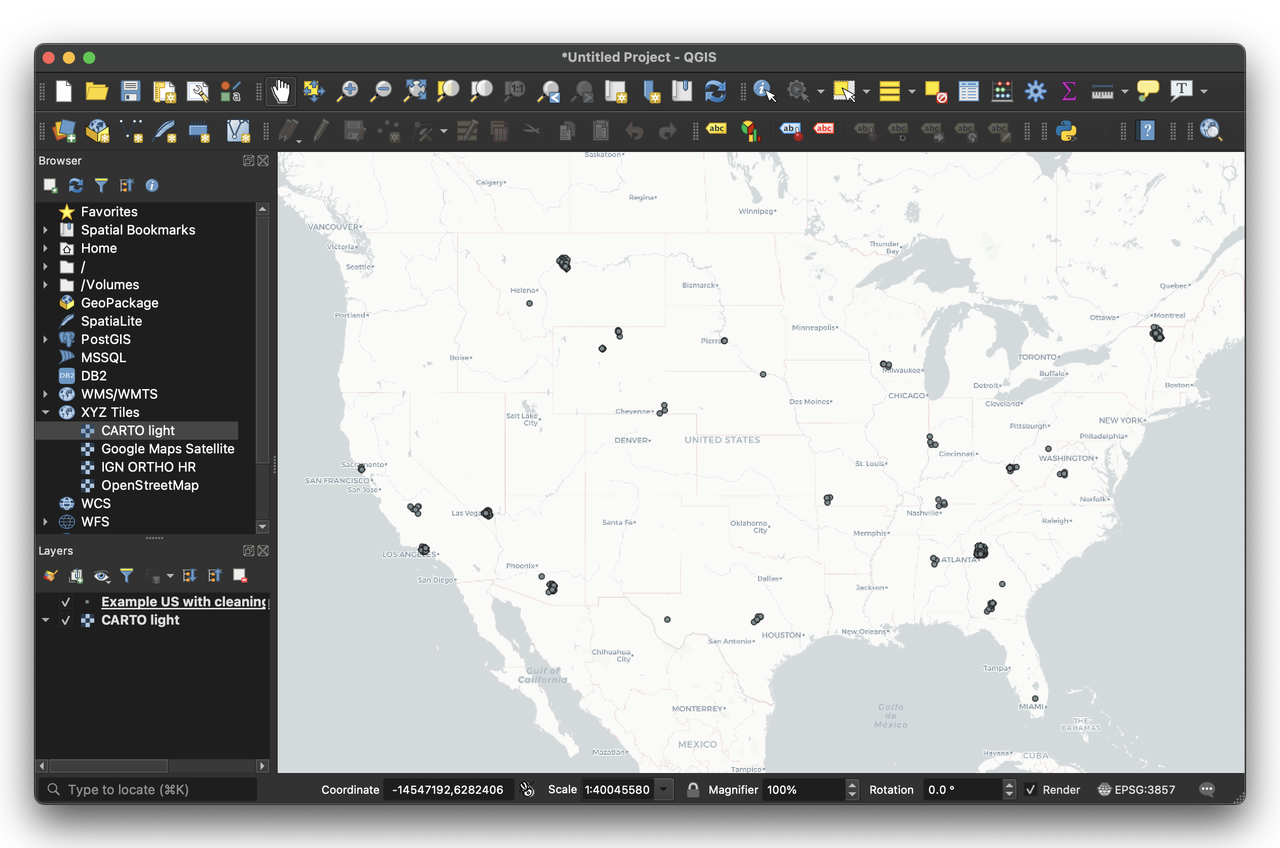
You can also use mapping libraries (Leaflet, Mapbox GL, Google Maps) to create custom visualizations.
Best practices for quality results
Geocoding is complex problem to solve. An address that seem obvious to you might be difficult to geocode for a machine. Here are some best practices to help a geocoding engine:
- Clean your addresses: remove typos, standardize formats (learn more about how geocoding works to understand why this matters)
- Add context: include country, postal code when possible
- Validate addresses: check if they exist before geocoding, when possible
Pro tip: If you're processing many addresses, start with a small sample (10-20 addresses) to test your workflow and verify quality before processing the full dataset.
Conclusion
Geocoding addresses doesn't have to be complicated. Whether you need to transform text addresses into GPS coordinates for a one-time project or set up automated geocoding for thousands of addresses, there's a method that fits your needs.
Remember:
- Don't trust results blindly - always verify geocoding results, especially for critical applications
- Analyze your results - check completion rates, accuracy, and identify patterns in failures
- Pick the best geocoding provider based on your analysis and completion rate - different providers work better for different regions and address types
The key is choosing the right tool for your specific situation. Start simple with a web interface if you're new to geocoding, then move to APIs if you need to scale up or automate.
If you want to learn more about how geocoding works behind the scenes, check out our guide: How geocoding works: A simple guide.
For country-specific recommendations and provider comparisons, see our country analyses: - Best Geocoding Providers for France - Best Geocoding Providers for the United Kingdom - Best Geocoding Providers for Germany
Ready to get started? If you need to geocode addresses with visualization and quality checks, try Coordable - it's designed to make geocoding easy, whether you have one address or thousands.
Happy geocoding! ⭐